
Application Detail
Explore the application tabs: overview, devices, live data, alarms, and MQTT guide
When you enter an application, the sidebar switches to Application Mode with specialized navigation.
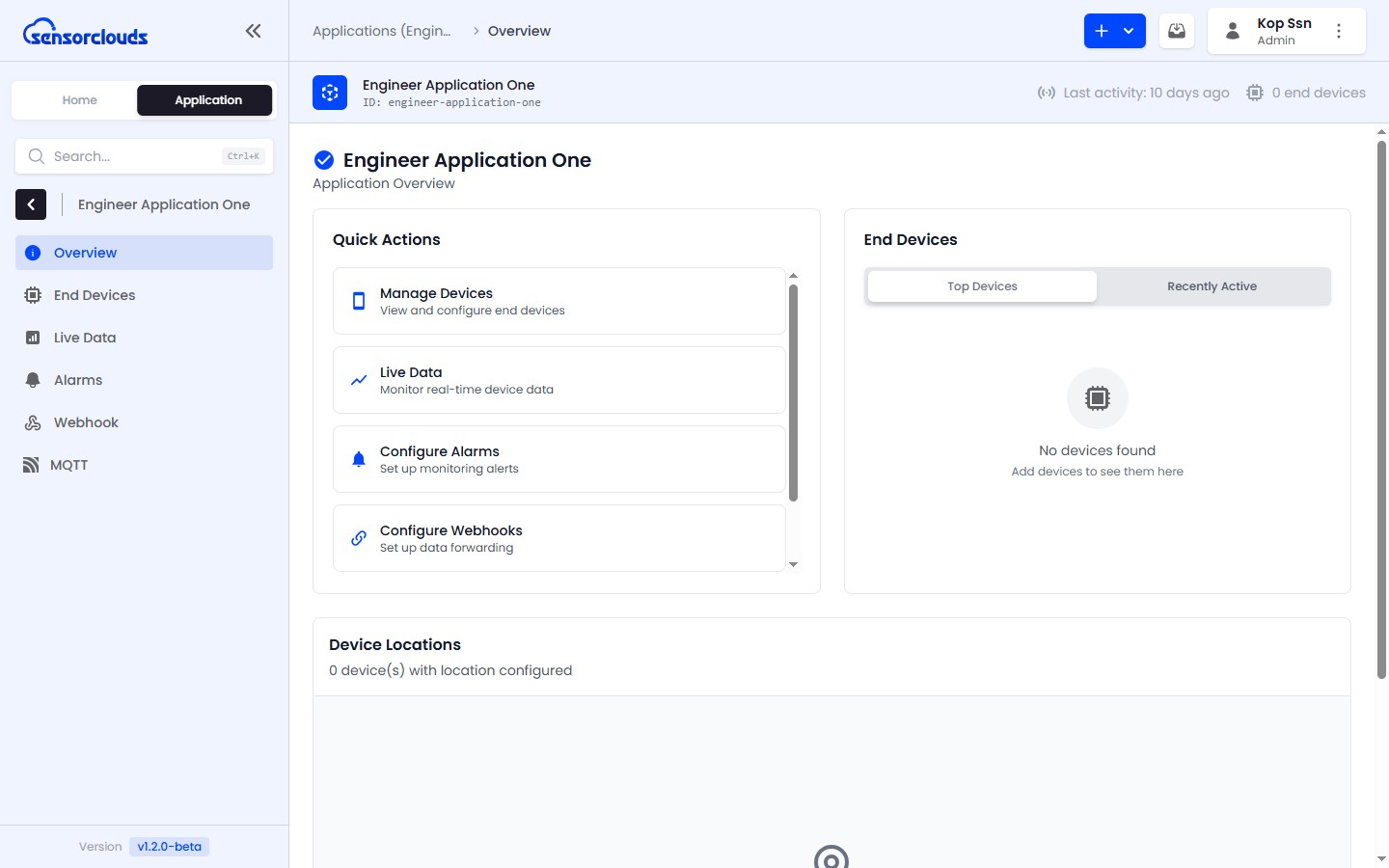
Overview Tab
The default view provides:
- Quick action links - Navigate directly to Devices, Live Data, Alarms, Webhooks, or MQTT guide
- Top Devices / Recently Active - Toggle between your most active devices and recently communicating ones
- Device location map - An interactive map showing all devices with GPS coordinates
Devices Tab
Manage all devices within this application:
- View the full device list with status indicators
- Add, edit, or delete devices
- Click a device row to navigate to its detail page
Live Data Tab
A real-time telemetry stream from all devices in this application:
- Messages appear automatically as they arrive via WebSocket
- Shows both raw and decoded payload data
- Useful for verifying that devices are sending data correctly
Alarms Tab
Configure and manage alarm rules specific to this application:
- Create conditions that evaluate against any device in the application
- View and manage active alarm instances
- See Creating Alarm Rules for detailed setup instructions
Webhook Tab
Send this application's events to your own systems with HTTP webhooks. Webhooks are configured as integrations - create an HTTP connector, scope it to this application, and pick which events to deliver. Each delivery can be signed so your endpoint can verify it came from Sensorclouds.
See Connecting an Integration and Choosing Which Events to Send to set one up.
MQTT Tab
A complete MQTT connection guide built into the application, including:
- Quick start steps for connecting your first device
- Connection options - WSS (port 443), MQTTS (port 8883), TCP (port 1883)
- LWT configuration for automatic offline detection
- Code examples in Python, JavaScript, and Arduino/ESP32
- TLS certificate information
- Troubleshooting tips for common connection issues
For the full connectivity guide, see Connecting Your Device.