
Alarms
Creating Alarm Rules
Define conditions that trigger alarms based on telemetry data
Creating an Alarm Rule
Navigate to an Application → Alarms tab.
Click Add Alarm.
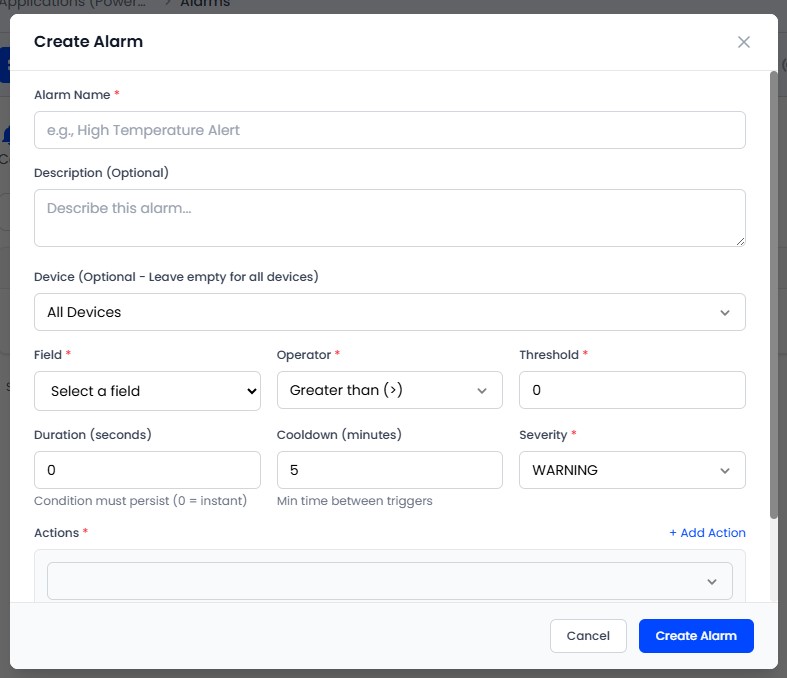
Configure the alarm rule:
| Field | Description |
|---|---|
| Name | Descriptive name (e.g., "High Temperature Alert") |
| Description | Details about the alarm |
| Field | Telemetry field to monitor (e.g., temperature) |
| Operator | Comparison: >, <, >=, <=, ==, != |
| Threshold | Numeric value to compare against |
| Severity | INFO, WARNING, or CRITICAL |
| Duration | How long the condition must hold before the alarm fires |
| Cooldown | Minutes between re-triggers (0–1440) |
| Device | Optional - target a specific device, or leave blank for all |
| Actions | What happens when the alarm triggers |
Click Save.
Alarm Scope
- Application-wide: Leave the device field empty to monitor all devices in the application
- Device-specific: Select a device to monitor only that device
Actions
| Action | Description |
|---|---|
| Notification | Creates a platform notification delivered via WebSocket |
| Integration | Calls a configured integration - Slack, Telegram, or an HTTP webhook - when the alarm fires |
ENGINEER Engineers can only select integrations within their assigned applications.
The cooldown period prevents alarm fatigue. After a rule triggers, it won't trigger again for the same device until the cooldown expires - even if the value remains above the threshold. The duration requirement is the opposite guard: it suppresses momentary spikes by requiring the condition to hold before firing.