
Device Profiles
Creating Device Profiles
How to create and configure device profile templates
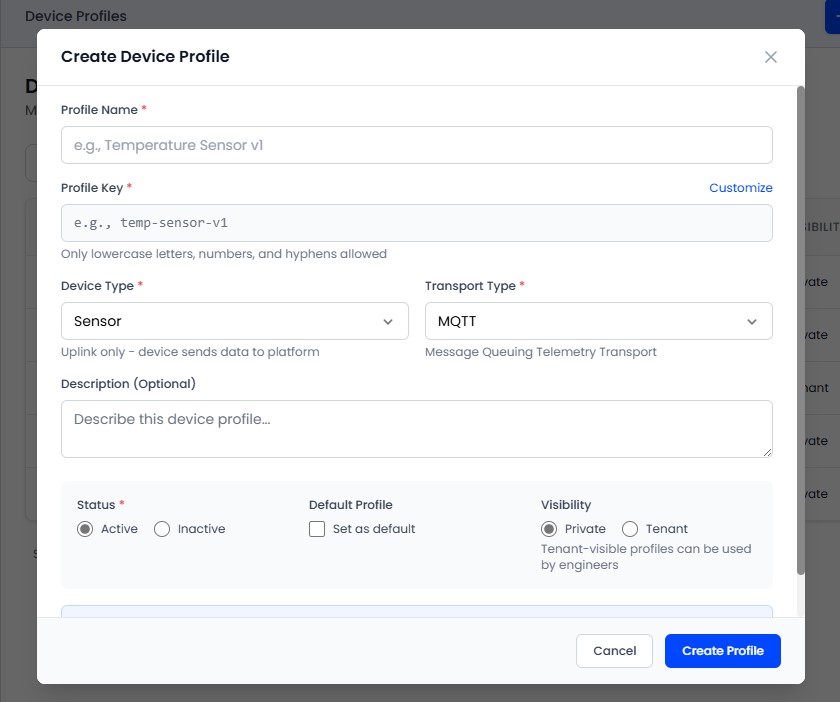
Creating a Profile
Navigate to Device Profiles from the sidebar.
Click Add Profile.
Fill in the profile details:
- Name (required): A descriptive name (e.g., "Temperature Sensor v2")
- Description: Details about the device type
- Device Type: Select a category (sensor, actuator, gateway, etc.)
- Transport Type: Communication protocol
- Codec Type: Choose how payloads are processed
- Visibility: Who can use this profile
- Timestamp Source: How timestamps are assigned
Click Save.
Codec Types
NONE - JSON Passthrough
Select NONE when your devices send plain JSON payloads like {"temperature": 25.3}. The platform stores the data as-is without any transformation.
CUSTOM - JavaScript Decoder
Select CUSTOM when your devices send binary data, hex-encoded strings, or any non-JSON format. You write a JavaScript function that transforms raw bytes into structured JSON. See Payload Decoder for details.
Visibility Options
- PRIVATE: Visible only to you (the creator) and tenant Admins. Use for work-in-progress or personal device types.
- TENANT: Visible to all users within your tenant. Use for device types the whole team should be able to apply.
Managing Profiles
- Click a profile row to edit its settings
- Update codec type, MQTT settings, or decoder scripts at any time
You cannot delete a device profile that has devices assigned to it. Reassign or delete those devices first.