
Alarms
Managing Alarm Instances
View, acknowledge, and resolve triggered alarms
When an alarm rule triggers, it creates an Alarm Instance that tracks the event through its lifecycle.
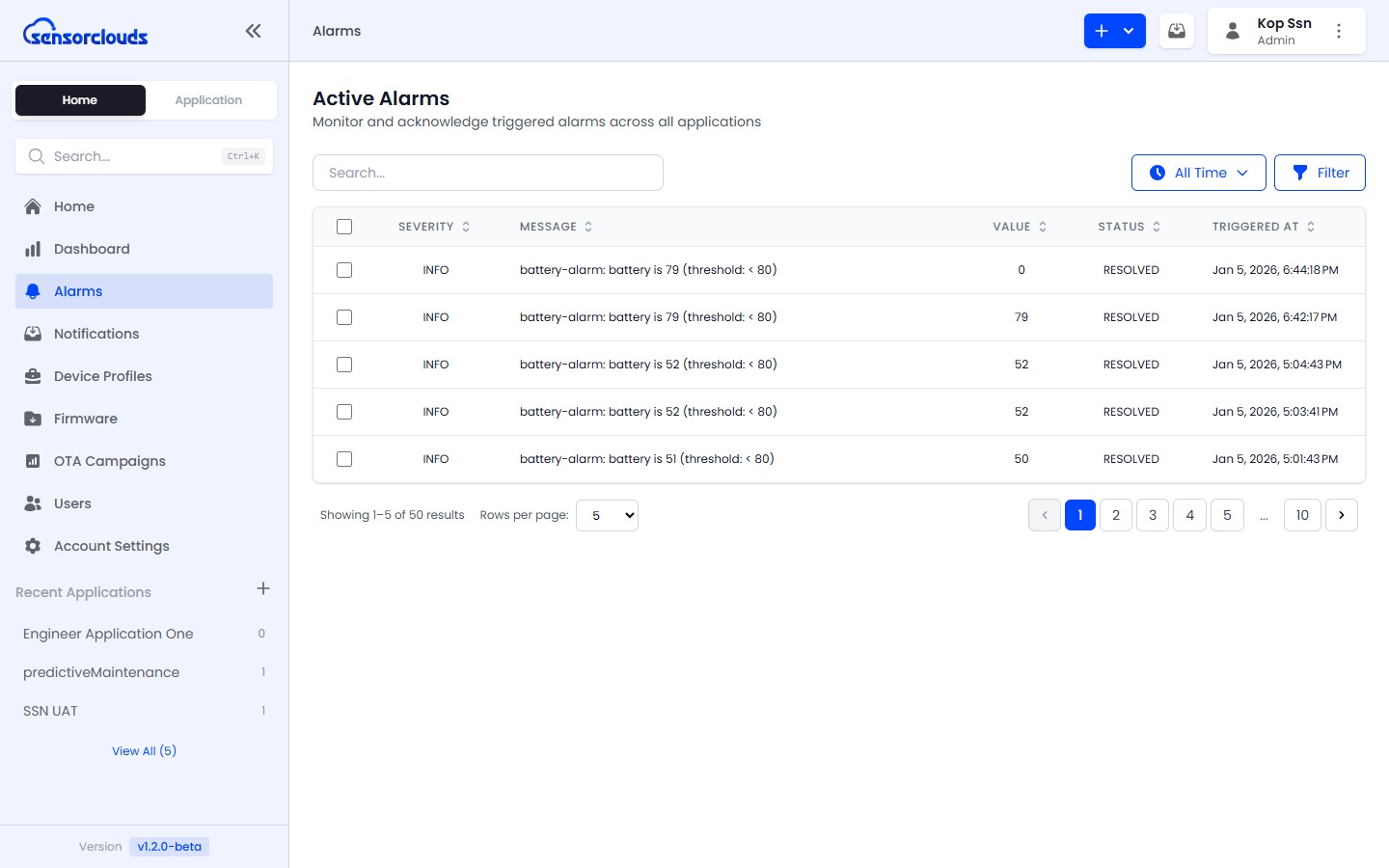
Active vs History
The alarm instance view is split into two tabs:
- Active - instances that are currently ACTIVE or ACKNOWLEDGED and still need attention
- History - instances that have been RESOLVED
This keeps your working list focused on what's still open while preserving a full record of past events.
Instance Statuses
| Status | Color | Meaning |
|---|---|---|
| ACTIVE | Red | The alarm condition was detected - awaiting action |
| ACKNOWLEDGED | Yellow | A user has seen and acknowledged the alarm |
| RESOLVED | Green | The alarm has been addressed and closed |
Acknowledging an Alarm
Navigate to the Alarms page.
Click on an active alarm instance.
Click Acknowledge in the detail modal. The instance moves to ACKNOWLEDGED status. The platform records who acknowledged it and when.
Resolving an Alarm
- Click Resolve on an acknowledged (or active) instance
- The instance moves to RESOLVED status
- The platform records who resolved it and when
Bulk Operations
- Select multiple alarm instances using checkboxes
- Click Acknowledge Selected or Resolve Selected
- A confirmation dialog appears before bulk actions are applied
Filtering
Filter alarm instances by:
| Filter | Options |
|---|---|
| Severity | Critical, Warning, Info |
| Status | Active, Acknowledged, Resolved |
| Time Range | Last 24h, 7 days, 30 days, All time |