
OTA Updates
Monitoring Updates
Track per-device OTA update progress and troubleshoot failures
Campaign Detail Page
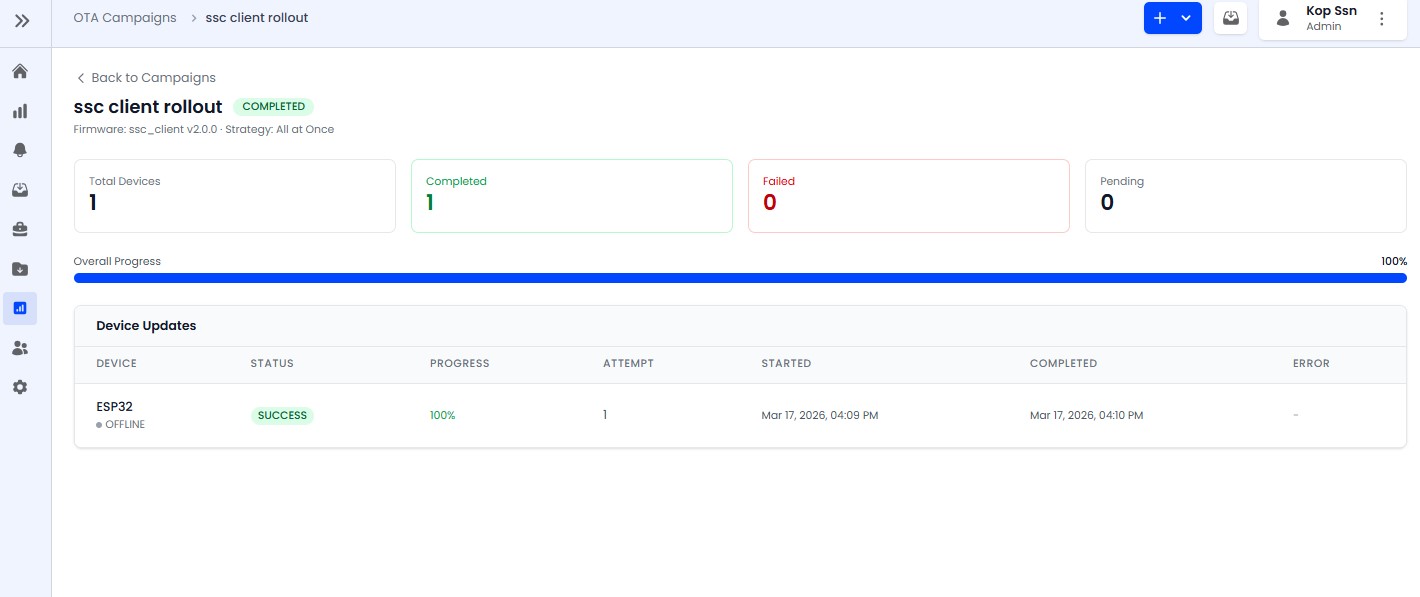
The campaign detail page provides real-time visibility into the update process:
- Campaign header with status and firmware information
- Summary cards: Total, Completed, Failed, and Pending counts
- Overall progress bar with percentage
- Per-device update table with detailed status for each device
Per-Device Table
Each row in the device table shows:
| Column | Description |
|---|---|
| Device name | Device identifier and connection status |
| Update status | Current status badge |
| Progress | Download/install progress bar |
| Attempt | Current attempt number |
| Timestamps | When the update started and completed |
| Error | Error message (if failed) |
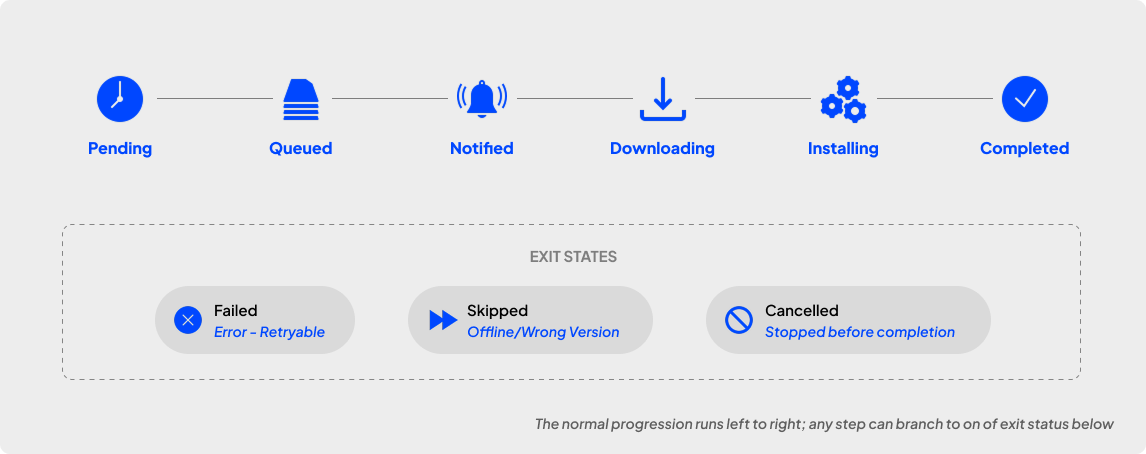
Device Update Statuses
| Status | Description |
|---|---|
| PENDING | Waiting to be processed |
| QUEUED | In queue for the current batch |
| NOTIFIED | Device has been notified of the update |
| DOWNLOADING | Device is downloading the firmware |
| INSTALLING | Device is installing the firmware |
| COMPLETED | Update was successful |
| FAILED | Update failed - see error message |
| SKIPPED | Device was skipped (offline, wrong version, etc.) |
| CANCELLED | Update was cancelled before completion |
Firmware Download
- Devices download firmware via a secure, time-limited URL
- No JWT required - uses single-use download tokens
- Each download includes a SHA-256 checksum for integrity verification
- Rate limited per device
If a device consistently fails, check the error message for details. Common causes include the device being offline, download timeouts, or firmware incompatibility. Use the Retry action on individual devices after resolving the issue.