
OTA Updates
Creating OTA Campaigns
Orchestrate firmware updates across device groups
Creating a Campaign
Navigate to OTA Campaigns from the sidebar.
Click Create Campaign.
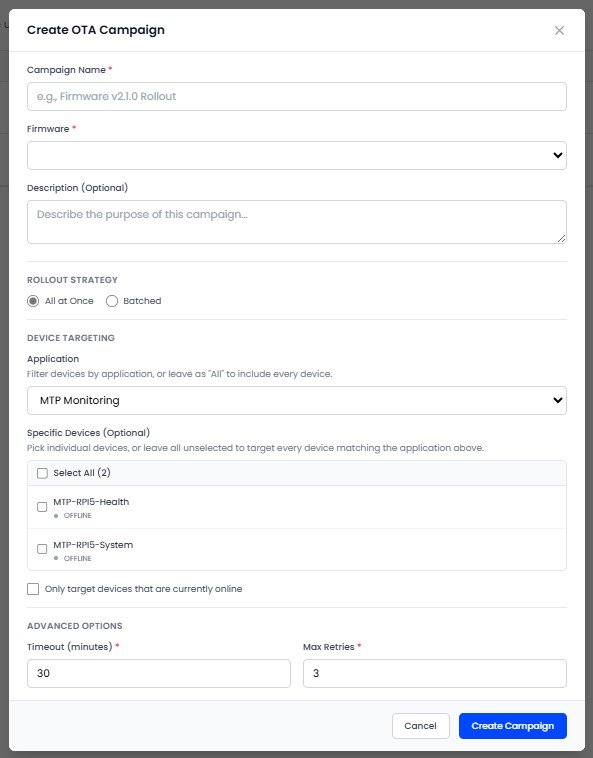
Configure the campaign:
| Setting | Description |
|---|---|
| Name | Campaign identifier |
| Firmware | Select a PUBLISHED firmware version |
| Target Application | Scope the campaign to a specific application |
| Target Devices | Select specific devices via checkbox from the device list |
| Strategy | ALL_AT_ONCE or BATCHED |
| Batch Size | Devices per batch (if BATCHED) |
| Batch Interval | Minutes between batches (if BATCHED) |
| Require Online | Only update devices that are currently online (offline devices are marked as SKIPPED) |
| Timeout | Minutes before marking unresponsive devices as failed (5 to 1440 minutes) |
| Max Retries | Retry attempts for failed device updates (0 to 10) |
The device list shows each device's name, connection status (green for online, gray for offline), and current firmware version. Use the Select All toggle to target every device in the application.
Click Save.
The BATCHED strategy is recommended for production. It updates devices in groups, so if issues arise you can pause before the entire fleet is affected. The platform will auto-pause a campaign if the device failure rate exceeds 30%.
Campaign Statuses
| Status | Description |
|---|---|
| CREATED | Configured but not started |
| IN_PROGRESS | Currently updating devices |
| PAUSED | Temporarily stopped - can be resumed |
| COMPLETED | All targeted devices have been processed |
| CANCELLED | Campaign was aborted |
Campaign Actions
| Action | Description |
|---|---|
| Start | Begin the update process |
| Pause | Temporarily halt (resume later) |
| Cancel | Abort the campaign |
| Retry Failed | Re-attempt updates on failed devices |