
Commands
Sending Commands
How to send commands to devices from the platform
From the Device Messaging Page
Navigate to a Device → Messaging tab.
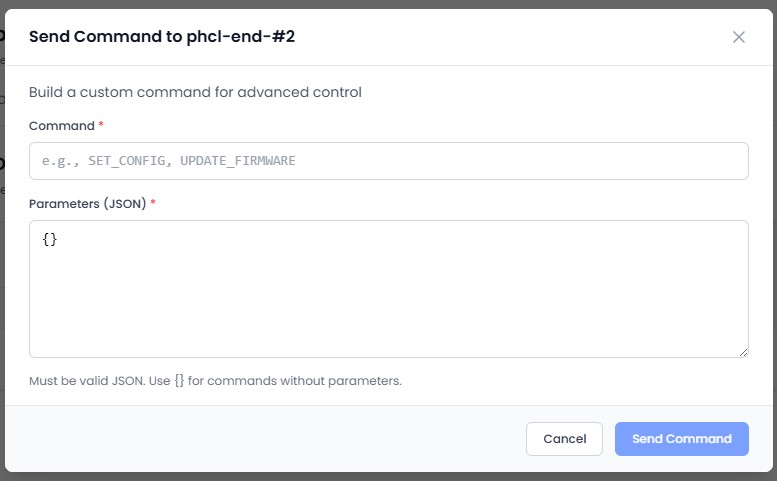
Click Send Command.
In the command modal, enter:
- Command: Action name (e.g.,
reboot,setInterval) - Parameters: Optional JSON parameters (e.g.,
{"interval": 30})
Click Send. The command appears in the command history below.
From Dashboard Toggle Widgets
Toggle widgets automatically send commands when switched on or off:
- The command name and on/off values are configured during widget setup
- An optional confirmation dialog can be shown before sending
- The widget uses optimistic UI - it updates immediately and rolls back if the command fails
See Toggle Widget for configuration details.
Command Constraints
| Constraint | Limit |
|---|---|
| Command name | Alphanumeric + _ - . : (max 100 characters) |
| Parameters | JSON object, max 3 levels deep, sanitized |
Predefined Quick Commands
The platform provides quick-access buttons for common commands:
| Command | Description |
|---|---|
| Reboot | Restart the device |
| Status | Request current device status |
| Set Interval | Change the telemetry reporting frequency |
| LED Control | Toggle the device's indicator LED |