
Quick Start Guide
Get up and running with Sensorclouds in minutes
This guide walks you through the essential steps to start using Sensorclouds, from your first login to seeing live device data.
Step 1: Log In to the Platform
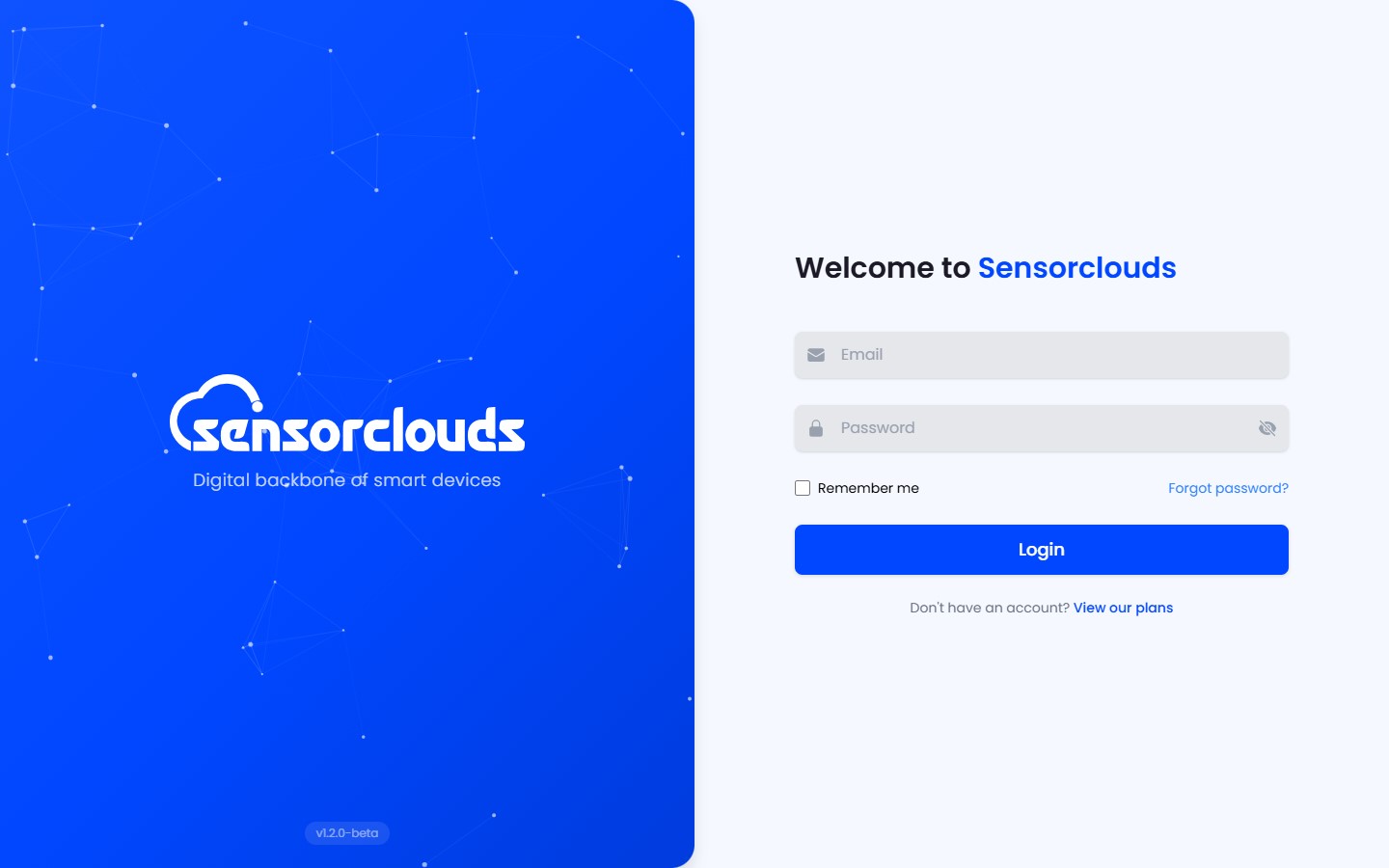
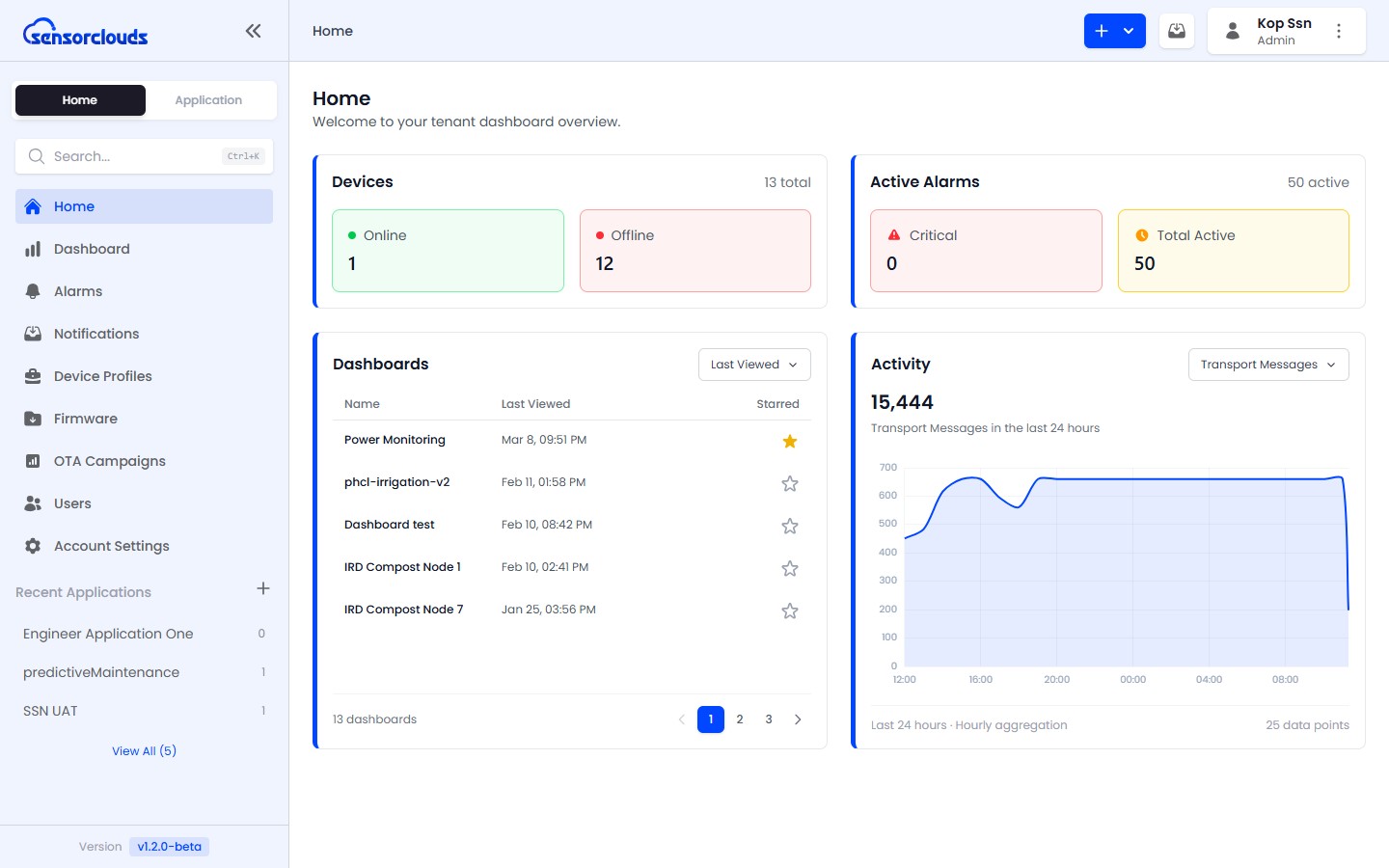
Navigate to your Sensorclouds instance URL and log in with the credentials provided by your administrator. You will be redirected to your role-appropriate dashboard:
| Role | Landing URL | Layout |
|---|---|---|
| Tenant Admin | /tenant-admin/home | Tenant dashboard |
| Engineer | /tenant-admin/home | Scoped access to own/assigned resources, can manage users |
| Crew (User) | /crew/home | Read-only dashboard |
Step 2: First Steps by Role
Create an Application
Navigate to Applications in the sidebar and click Add Application. Give it a name and description - this groups your related devices together.
Create a Device Profile
Go to Device Profiles and click Add Profile. Choose codec type (NONE for JSON data or CUSTOM for a JavaScript decoder), set MQTT parameters like QoS level.
Register a Device
Inside your application, go to the Devices tab and click Add Device. Select the device profile you created. Save - the platform generates unique MQTT credentials.
Copy MQTT Credentials
Go to the device's Settings tab. Copy the Device Token (MQTT username) and generate an MQTT password. Save these securely - the password is shown only once.
Connect Your Device
Configure your physical device with the MQTT credentials. Publish telemetry data to the device's data topic. See Connecting Your Device for details.
View Live Data
Navigate to your application's Live Data tab. You should see telemetry messages arriving in real-time as your device publishes data.
Create a Dashboard
Go to Dashboards and create a new dashboard. Add widgets (value cards, gauges, charts) and configure them to display your device's telemetry fields.
Set Up Alarms
In your application's Alarms tab, create alarm rules to monitor telemetry thresholds (e.g., temperature > 40°C). Configure notification actions.
As an Engineer, you can manage users and work with your own or assigned resources:
- Log in - you have access to your own or assigned applications and devices
- Navigate to Applications from the sidebar to view your applications
- Create or manage your own devices and configure profiles
- Monitor live data and manage device settings
- Create dashboards, alarms, firmware, and OTA campaigns
Engineers cannot delete resources or manage tenant settings - those actions are reserved for Admins.
As a crew user, you have read-only access:
- View dashboards assigned to you on the Dashboards page
- Monitor device status and telemetry data
- Interact with Toggle widgets on dashboards (if configured) to send device commands
- Check Notifications for alarm alerts